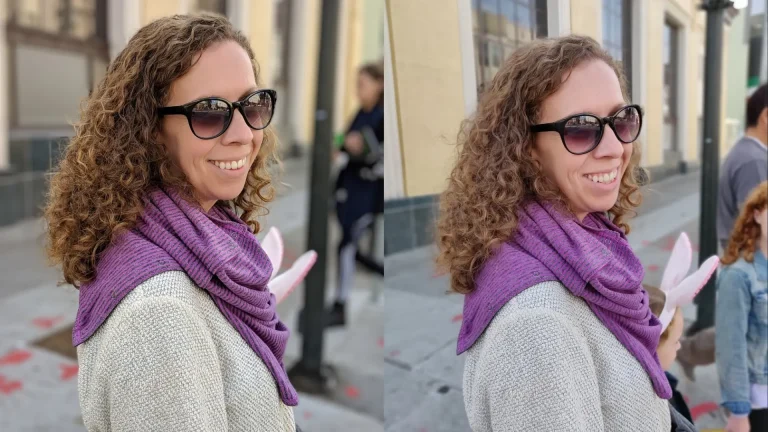
Best GCam Settings for Perfect Portraits and Natural Skin Tone
Google Camera (GCam), the technology behind those gorgeous portrait images you see online, is likely familiar to anyone interested in mobile photography. By capturing lifelike skin tones, smooth backgrounds, and realistic details, GCam can easily compete with a DSLR when the proper settings are used. We’ll go over how to adjust your GCam settings in this guide so that you always get that flawless, lifelike portrait.
Enable HDR+ Enhanced for Balanced Lighting
Turning on HDR+ Enhanced mode is the first step towards taking expert portraits. To lessen harsh shadows and overexposed areas, it automatically combines several shots. The outcome? Improved skin tone, softer highlights, and brighter eyes—even in challenging lighting situations.
Additionally, HDR+ Enhanced enhances facial definition, giving portraits a crisper, more lively appearance.
Set Exposure Manually for Realistic Skin Texture
Don’t let the camera change your exposure on its own. Rather, before taking the picture, move the exposure bar down a little. This small change preserves your subject’s natural colour by preventing the skin from looking overly bright or washed out. Your portraits will have more depth and drama and a more cinematic tone if you use slightly darker exposure.
Adjust White Balance for Accurate Skin Tone
Skin tones in photographs are influenced by lighting. You can manually select the ideal white balance in GCam:
- Daylight: For pictures taken outside.
- Tungsten: For cosy interior illumination.
- Auto: GCam’s AI is adept at handling uncertainty.
By using this setting, you can be sure that your portraits will remain realistic rather than pale or orange. On cloudy days, try experimenting with “Cloudy” mode; it adds a subtle warmth that makes your skin look more radiant.
Choose the Right Face Retouching Option
The Face Retouching function of GCam is delicate yet effective. For mild skin smoothing without sacrificing texture, select the “Natural” or “Subtle” settings. Steer clear of extensive retouching; the idea is to bring out your subject’s personality, not to take it away. For the most realistic-looking effects, use this feature outside or during the day.
Use Portrait Mode for Professional Background Blur
To achieve the recognisable DSLR bokeh effect, switch to Portrait Mode. For a smooth, gentle blur in the background, place the subject three to four feet away from the camera. To maintain a clear and sharp focus, always tap the face before taking a picture. The background blur will look more polished and seamless the closer your subject is to the lens.
Import a Portrait-Optimized Config (XML file)
For more experienced users, importing a custom XML configuration can have a significant impact. Photographic enthusiasts have pre-tuned these configurations to enhance saturation, contrast, and colour balance. Finding one that is specifically designed for your phone model is simple, and importing it takes only a few seconds. Before applying a new XML, always make a backup of your previous configuration to prevent your preferences from being overwritten.
Use Natural Light Whenever Possible
Lighting is important regardless of how good GCam is. Portraits are best taken in the golden hour, which is either early in the morning or late in the afternoon. The gentle sunlight softens shadows and gives skin tones a natural glow, giving your pictures a cinematic look. To get even light on your subject’s face, try taking your photo close to a window or other reflective object.
Why are these settings important?
These settings enable GCam to combine manual control and AI processing to enhance each portrait. Your images will exhibit a natural warmth and depth that appears effortlessly professional, rather than appearing heavily filtered or flat. Every picture feels genuine when exposure, colour, and focus are all properly balanced; this is similar to actual DSLR photography.
By adjusting these parameters, you can turn regular mobile portraits into gorgeous, realistic pictures that showcase the actual texture and tone of your skin. The sophisticated software in GCam makes sure that every image is sharp, vibrant, and naturally balanced, giving your photos a polished appearance without requiring extensive editing.
Frequently Asked Questions
Conclusion
Your portrait photography can be totally changed by learning the proper GCam settings. You can take portraits that appear lively but natural by utilising HDR+ Enhanced, adjusting exposure, and modifying white balance. With the help of GCam’s clever image processing, light editing, and optimal lighting, you can get DSLR-quality photos directly from your phone. These settings guarantee that every picture captures genuine beauty and flawlessly balanced skin tones, whether you’re taking professional or informal selfies.